


InnoCaption Live Call Captions
4.32.04K Reviews
App Specs
- Version
- 4.5.0
- Updated On
- License
- Free
- Downloads
- 1,000,000+
- Developer
- Mezmo Corporation
- Categories
- Communication
- Platform
- Android, iOS
Screenshots

 Analysis by AppCompare
In a shared household, phone calls can become a group effort: one person is trying to follow a conversation while someone else is nearby, ready to help if a name, appointment time, or address slips by. I see InnoCaption Live Call Captions as most useful when that help can stay in the background. Captions put the conversation in view for the person taking the call, rather than making a relative or housemate the default interpreter. That small shift can make everyday calls feel more private and independent.
It is a communication app from MEZMO Corporation, and its purpose is narrower than a general speech-to-text tool: it is built around live phone conversations. That distinction matters. A transcription app used beside a speaker may help in a room, but it is not automatically a practical substitute for captions attached to a call. I would consider this when calls with clinics, service providers, colleagues, or friends are the difficult part of the day, rather than when the main need is understanding in-person conversation.
Where it fits in a shared home
Imagine a person at home returning a call about a delivery or arranging a repair while a family member is cooking nearby. With captions on the caller’s screen, the person on the phone can read what is being said without asking someone else to listen in. If a key detail is unclear, they can ask the caller to repeat it and check the text themselves. That is a more respectful workflow than putting the call on speaker by default, especially when the conversation includes personal information.
It can also help a household coordinate without turning the app into a family account. A relative might help with initial setup, then let the person who uses the phone handle calls and decide what to share afterward. I would keep that boundary clear: captions and any saved conversation text are for the account holder to manage, not an invitation for everyone at home to review calls. The useful household role is practical support, not routine monitoring.
Setup, ownership, and expectations
The first question I would settle is whose phone and number will be used. This is a call-centered tool, so it makes most sense on the device belonging to the person who needs captions. Sharing one phone between household members can blur caller identity, contact names, and private conversations; separate devices keep those boundaries easier to understand. If someone else assists with setup, I would have the regular user try a short, low-pressure call afterward so they can learn where to look and how the process feels.
There is also a practical difference between helping someone install an app and taking responsibility for every call. A family member can explain the basic routine, but the user should remain the one choosing whether to save or revisit a conversation. That matters most when calls involve health, finances, or personal arrangements. I would not treat a transcript as a household record unless the person on the call genuinely wants that arrangement.
The app is free, is rated for Everyone, and has an average rating of 4.3 from around 6,300 ratings. It has been available since June 20, 2018, and its current version is 4.3.14. Those details offer some context for someone deciding whether to try it, but the better test is still whether its call workflow suits the person who will rely on it. It supports Android 7.0 and later, so an older phone may be usable if it meets that requirement.
Worth Reading Before You Choose

EA SPORTS FC Mobile 26 Is a Bigger Football Game, but It Takes Time

Flipboard Shows What News Apps Must Do Beyond the Feed

Switching to Android Auto Means Rethinking Your Driving Routine

Google Calendar Makes a Crowded Week Easier to Manage

Ludo King Makes the Most of the Minutes Between Plans

Baby Panda World Brings Quick Play to Modern Phones, but Its Game Library Feels Busy
Coordination without taking over
For a household, the most helpful routine is often simple: agree on who answers a call, where the phone will be during it, and whether the user wants help afterward. For example, if a family member is expecting a call with a time-sensitive detail, another person can make sure the phone is nearby and avoid interrupting while the captions are being read. If the user wants a second pair of eyes after the call, they can choose to share the relevant detail themselves.
I would also plan for situations where captions are not the whole answer. A fast speaker, an unfamiliar name, a noisy environment, or a weak connection can make any captioning workflow harder. Rather than relying on a single line of text for important information, the caller can be asked to spell a name, repeat a number, or confirm the detail aloud. For appointments and instructions, writing down the key point during the call is a sensible backup, not a sign that the app has failed.
Age, trust, and the right user
An Everyone age rating makes the app suitable for a broad audience in the store sense, but it does not settle whether a child should manage calls independently. That depends on the child, the type of calls, and the family’s judgment. For an adult or older relative who wants more control over phone conversations, I find the case clearer: captions can support participation without requiring another person to take over the call. For a younger user, a parent may still need to guide who they speak with and what information they share; captions do not replace that conversation.
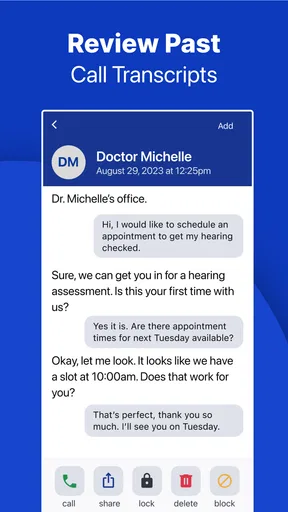
Trust also means being careful with saved text. A transcript can be useful for checking a time or recalling a caller’s instructions, but it may contain private details. I would treat it as sensitive personal information, keep access with the person who made the call, and avoid saving or sharing more than needed. If a user would rather not keep a written record, they should make that choice deliberately rather than assume every call needs to be stored.
First Impressions and Setup
Getting started with InnoCaption Live Call Captions is a breeze. The app is available on both Android and iOS, and downloading it is as simple as a tap. Once installed, you’ll need to go through a quick setup process where the app asks for some permissions. Don’t worry, it’s all pretty standard stuff, like accessing your contacts and microphone. I was up and running in just a few minutes.
The interface is clean and intuitive, which is always a plus. I love apps that don’t make me feel like I need a degree in tech to navigate them. Everything is well-organized, and the main features are just a tap away. The design is minimalistic, which suits its purpose perfectly—no unnecessary distractions.
How It Works
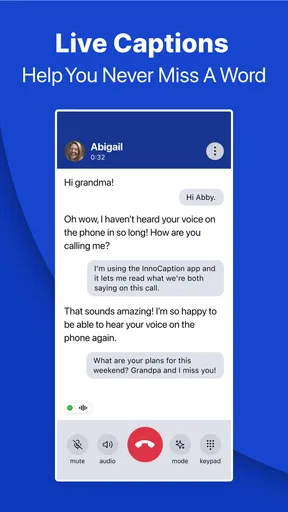
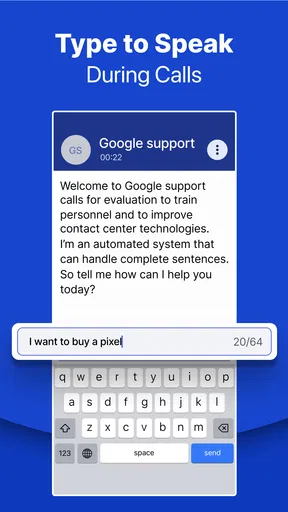
So, here’s where the magic happens. When you make or receive a call, InnoCaption provides real-time captions right on your screen. It’s designed for people with hearing difficulties, but honestly, anyone can benefit from it. Sometimes, calls are just hard to follow due to background noise or poor connections, and having captions can be a lifesaver.
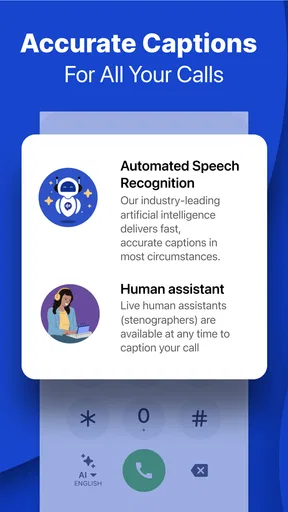
The app uses a combination of stenographers and automated speech recognition (ASR) to deliver captions. You can choose between these two options based on your preference. I found the stenographer option to be incredibly accurate, but the ASR wasn’t too shabby either, especially for those quick and casual calls.
The User Experience
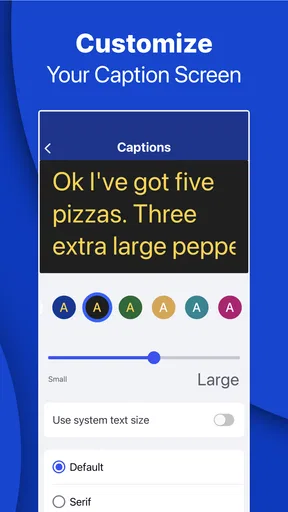
Using the app feels seamless. Once a call starts, you’ll see the captions appear almost instantly. It’s almost like watching subtitles in your favorite movie. The text is clear and easy to read, and you can adjust the font size if needed. This feature is particularly helpful for those who may need larger text.
Another cool aspect is the ability to save transcripts. This can come in handy if you need to revisit a conversation later, or if you just want to keep a record. Plus, the app ensures your data is kept private and secure, which is always a concern these days.
What It Offers Beyond Captions
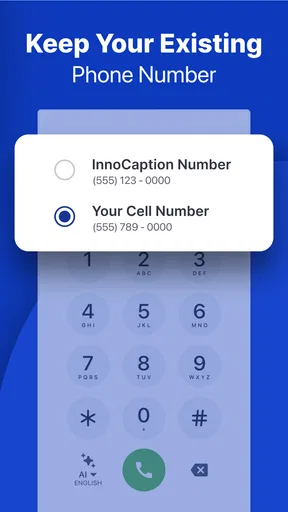
Beyond the core captioning feature, InnoCaption also offers a few nifty extras. For instance, you can integrate with your phone's contacts seamlessly. So, when a call comes in, you’ll see the caller’s name and number, just like in your regular phone app.
There’s also a voicemail transcription feature. It works similarly to the call captions—real-time conversion of your voicemail into text. This is super handy if you’re unable to listen to your voicemails immediately.
Comparing it with other ways to follow calls
The usual alternatives each solve a slightly different problem. Putting a call on speaker lets another person help, but it reduces privacy and can be awkward in a shared room. Asking the caller to text every detail works for simple arrangements, though it interrupts the natural flow and is not always practical. A separate speech-to-text tool may be helpful for nearby speech, but it is not the same as having captions as part of a phone-call workflow. I would choose this app when the conversation itself is the barrier; for face-to-face chats or meetings, a tool designed for live room transcription may be the better fit.
The choice between ASR and stenographer captioning is another meaningful trade-off, rather than a setting I would ignore. For a casual call, automated captions may be a convenient way to follow along. If a conversation is important or includes unfamiliar names and detailed instructions, I would favor the option that feels more dependable to the user and allow time to check unclear wording. No caption method should be treated as infallible, so repeating or confirming critical information remains worthwhile.
Small habits that make calls easier
Before an expected call, I would keep the phone charged, place it where the screen is easy to see, and make sure the user is comfortable reading while listening. If small text is tiring, adjusting the font size before the call is more useful than trying to change it while keeping up with a conversation. A quick practice call with someone trusted can also help a new user learn the rhythm without the pressure of a medical or work-related conversation.
For a call that includes several action items, I would keep a pen or notes app ready and capture only the essentials: a name to confirm, a date, or the next step. The transcript can help with review, but turning every call into a lengthy record may create unnecessary clutter and privacy concerns. A selective approach gives the user a way to verify details while keeping control over what they retain.
Limits worth considering
There is a learning curve even when an interface feels simple. The user still has to look at the screen, follow the text, and speak or respond at the right time. That may be tiring for someone who finds reading quickly difficult, and it may not suit a call where the phone needs to stay out of sight or the person is occupied with another task. Captions add access, but they do not remove the need to participate in the conversation.
Compatibility is another practical check. The app supports Android 7.0 and later, but an older operating system below that minimum is a reason to look for another option or use a supported device. The app is free, which makes trying it less of a financial commitment, yet I would still make sure the person who needs it is comfortable with the setup and the way calls are handled before relying on it for important conversations.
Who I would recommend it to
I would recommend it first to people who regularly struggle to hear phone calls and want to manage those conversations more independently. It may also suit someone who hears adequately in person but misses words on calls because of connection quality, background noise, or the difficulty of distinguishing voices without visual cues. The saved-text option and voicemail transcription can be useful for people who need to revisit spoken information, provided they are comfortable managing that text privately.
I would skip it if the main need is captions for in-person conversation, if the intended user does not want to read from a screen while speaking, or if their device does not meet the operating-system requirement. It is also not a substitute for a relay or another communication method that a person already relies on and prefers. In those situations, the right choice is the one that makes communication dependable for that individual, not the one with the most features.
Final Thoughts
All in all, InnoCaption Live Call Captions is a fantastic tool for enhancing phone communication. Whether you have hearing difficulties or just want a bit more clarity in your calls, this app can make a huge difference. It’s user-friendly, accurate, and gives you peace of mind knowing you won’t miss a word.
So, if you’re looking for a reliable app to assist with phone calls, give InnoCaption a try. It's free to download, so you’ve got nothing to lose! Happy calling!
My household verdict
For shared homes, I like the idea of this app most when it increases one person’s control rather than making everyone a participant in their calls. A family member can help with setup or practice, then step back while the user handles conversations and decides whether to keep any text. That balance of support and privacy is more important than having a relative nearby to interpret every exchange.
It has a 4.3 average from around 6,300 ratings and more than 500,000 installs, which suggests it has found an audience, but those figures are not a substitute for trying the actual call flow. I would start with a familiar contact, check whether the captions are comfortable to read, and decide whether the available captioning approach matches the user’s needs. If it does, this is a focused, free communication aid worth considering; if not, a different call or accessibility method may be a better fit.
Pros
- Accurate real-time transcription.
- Easy to use interface.
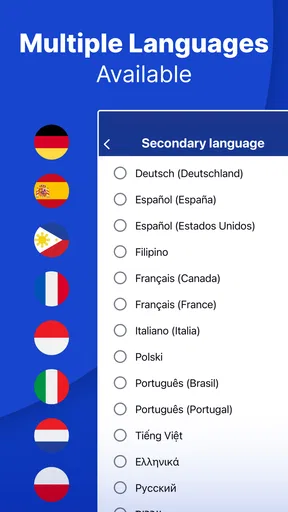
- Supports multiple languages.
- Customizable text size.
- Free to use with FCC support.
Cons
- Requires stable internet connection.
- Limited offline functionality.
- Not all accents are perfectly recognized.
- Occasional delays in transcription.
- No voice-to-text for recordings.
FAQs for InnoCaption Live Call Captions
What is InnoCaption Live Call Captions and how does it work?
InnoCaption Live Call Captions is an app designed to provide real-time captioning for phone calls, catering primarily to individuals with hearing impairments. It utilizes advanced voice recognition technology to transcribe spoken words into text, which appears on your device’s screen during a call. This service is available for both incoming and outgoing calls, offering seamless communication.
Is InnoCaption Live Call Captions free to use?
Yes, InnoCaption Live Call Captions is free for users. The app is funded through a program by the Federal Communications Commission (FCC) that supports telecommunications services for individuals with hearing loss. This ensures that users can access the benefits of the app without any financial burden.
On which devices can I use InnoCaption Live Call Captions?
InnoCaption Live Call Captions is available for both Android and iOS devices. It is compatible with most smartphones and tablets, allowing users to access its features on their preferred platform. Users should ensure their device meets any necessary system requirements for optimal performance.
How accurate are the captions provided by InnoCaption?
InnoCaption uses a combination of automated speech recognition and live stenographers to enhance the accuracy of its captions. While the automated system handles most calls efficiently, users can opt for human-assisted captioning for increased precision, ensuring that the captions are as accurate as possible.
What are the privacy features of InnoCaption Live Call Captions?
Privacy is a priority for InnoCaption. The app ensures that all call data and captions are encrypted, protecting users’ conversations from unauthorized access. Additionally, the app complies with relevant privacy laws and regulations, safeguarding users’ personal information and maintaining confidentiality throughout their usage.


